

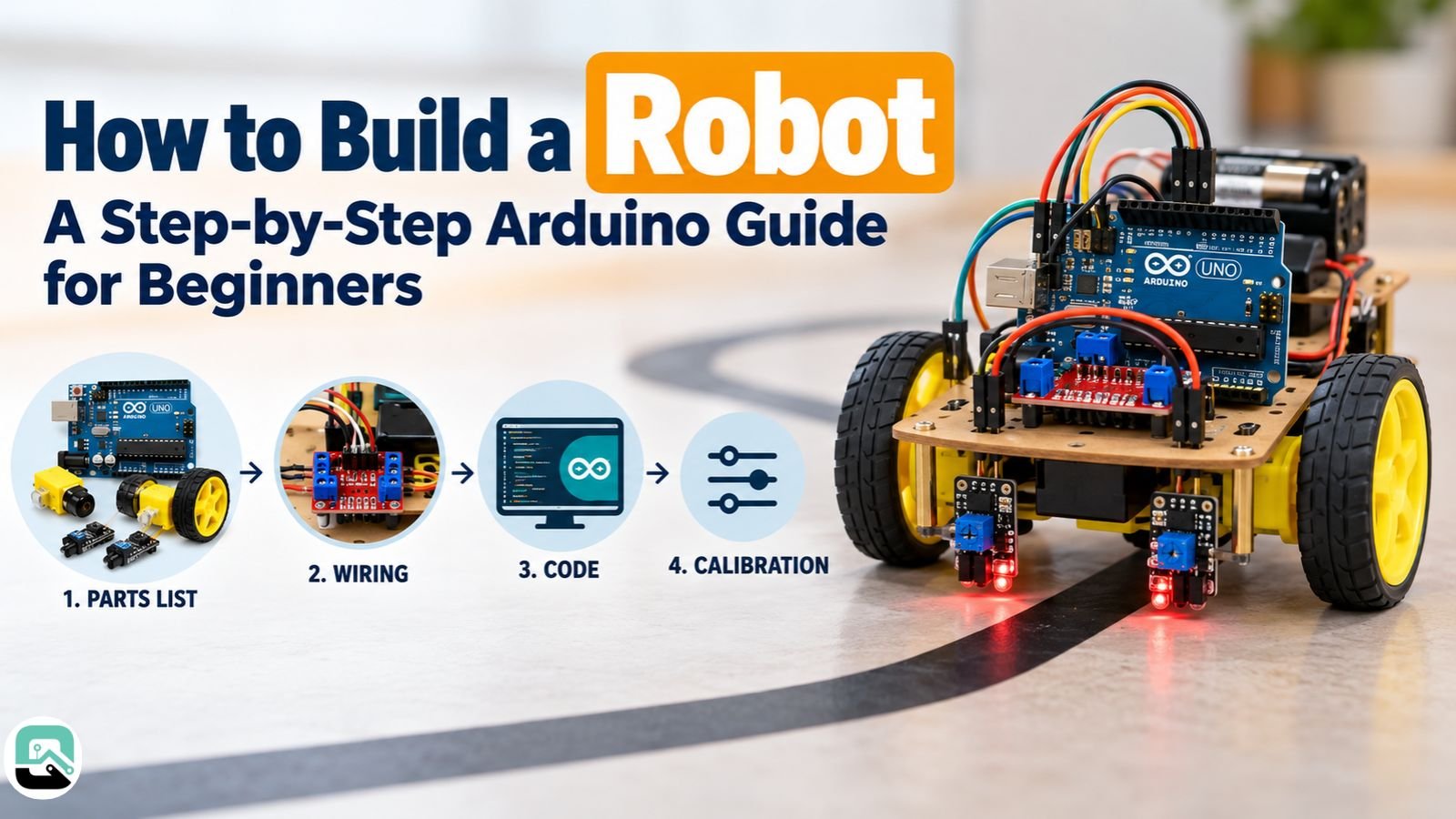
By the end of this guide, you’ll have a small two-wheeled robot that follows a strip of black tape across the floor. It runs on an Arduino Uno, a TB6612FNG motor driver, two TT gear motors, and a pair of TCRT5000 infrared sensors.
Give it a few evenings. Assembly and wiring usually take 2–4 hours. Calibration takes another hour or three, depending on how cooperative your sensors are.
One thing up front: this is a reference design. The parts and wiring come from manufacturer datasheets and Arduino’s own documentation, but the code hasn’t been run on a physical robot yet. Test each stage as you go, and treat the numbers as starting points rather than gospel. The finished robot is a small AA-powered ground vehicle, with no radio, no weapon, and nothing that flies.
Hardware details last checked: October 2026.
Picking your first robot project
There are three sensible ways in, and they suit different people.
| Route | Best for | Skills learned | Extra parts |
|---|---|---|---|
| Cardboard motorized robot | Kids, school activities | Basic assembly, polarity | Motor, battery holder, switch |
| Arduino line follower (this guide) | Learning electronics and code | Wiring, calibration, feedback | Controller, driver, sensors |
| Obstacle avoider | A second autonomous build | Distance sensing, conditional logic | Ultrasonic or IR distance sensor |
The line follower sits in a sweet spot. It uses a genuine feedback loop, yet the whole program fits on one screen.
Should you start with a kit?
If you want the quickest route to a moving robot, yes. Arduino-based smart-car kits, such as Elegoo’s Smart Robot Car range, ship with a chassis, motors, a driver board, and line sensors that already match each other.
The catch is wiring. A kit’s driver board and pin layout rarely match this guide, so follow the kit’s diagram for the connections. The calibration and troubleshooting sections below still apply. Makeblock’s mBot is a different case: it runs on its own controller board, so none of this wiring carries over.
Buying parts one by one takes longer, but you learn more, because every voltage and current rating becomes your problem. Plenty of people split the difference with a cheap 2WD chassis kit for the mechanical side, then buy the electronics separately. That’s the approach used here.
What makes something a robot?
A robot senses its surroundings, decides what to do, and then acts. Sensors gather information, a controller runs the code, and motors carry out the decision.
A line follower runs through that cycle hundreds of times a second. It checks which sensor sees the tape, works out which way it has drifted, and slows one wheel to steer back.
Why black tape on a light floor?
The TCRT5000 shines infrared light downward and measures how much comes back. A pale floor bounces most of it back, and matte black tape absorbs most of it. That contrast is large enough for even a cheap sensor to tell “line” from “no line” without hesitation.
Parts list for a beginner robot
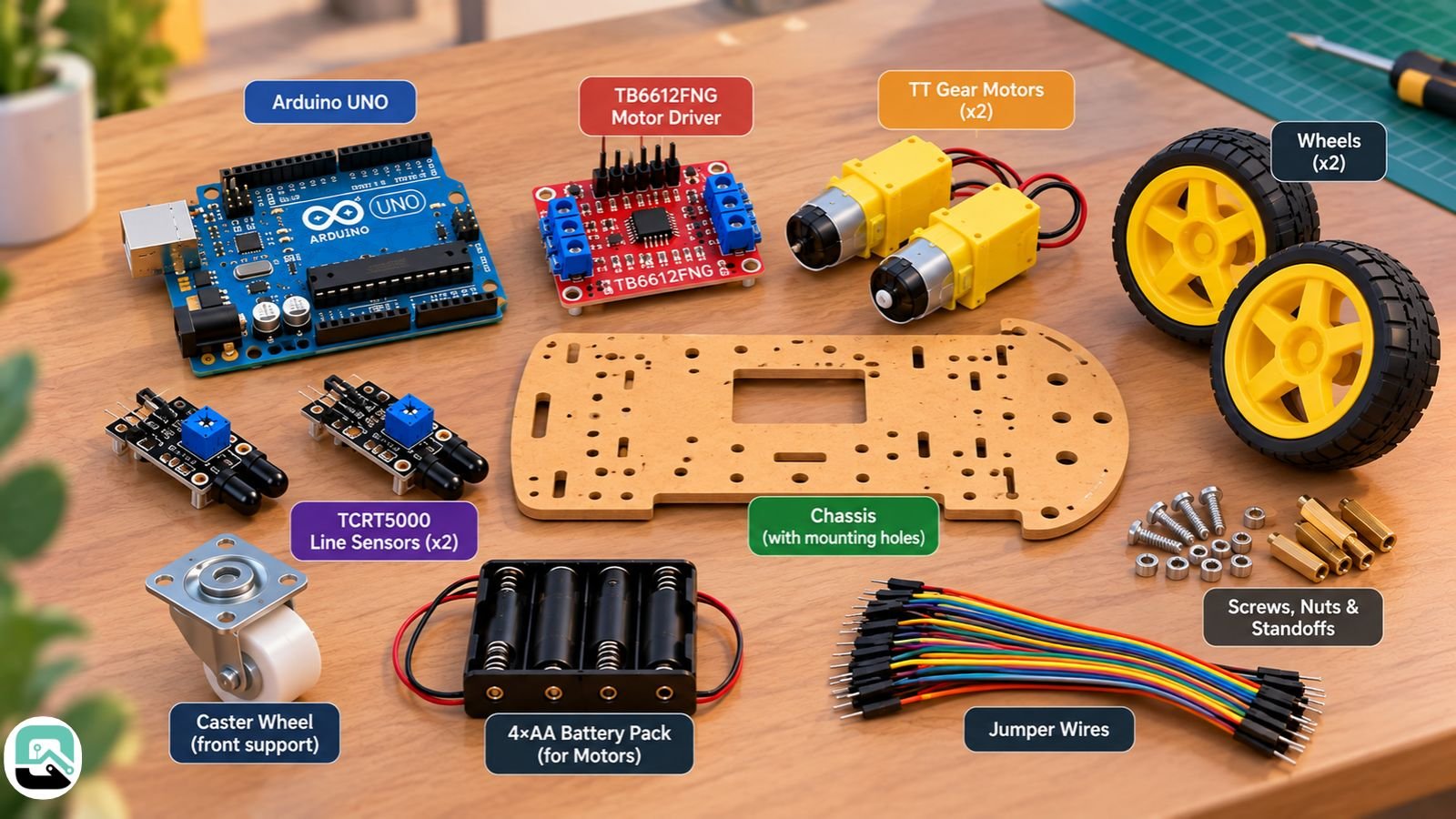
You’ll need a controller, a motor driver, two motors with wheels, a chassis, two line-sensor modules, two separate power sources, and some jumper wires.
Before you order anything, check the voltage and current figures. Mismatched power sinks more first robots than bad code does.
| Qty | Part | Key spec to check |
|---|---|---|
| 1 | Arduino Uno R3 or Uno R4 | 5 V logic |
| 1 | TB6612FNG motor driver breakout | 1.2 A average per channel; motor supply 2.5–13.5 V recommended; logic 2.7–5.5 V |
| 1 | 2WD chassis kit with two TT motors, wheels, and a caster | Motor rated voltage (often 3–6 V) and stall current |
| 2 | TCRT5000 line-sensor modules with a digital output (D0/DO) pin | 3.3–5 V supply; onboard comparator and adjustment potentiometer |
| 1 | 4×AA battery holder with switch, plus 4 alkaline AA cells | About 6 V when fresh |
| 1 | USB power bank and cable for the Uno | Powers the Uno when the robot runs untethered |
| 1 | Breadboard and male-to-male jumper wires | |
| 1 | Black electrical tape and a light floor or poster board | Your test track |
For tools, a small screwdriver set and a wire stripper cover the basics. A multimeter isn’t strictly required, but it replaces a lot of guesswork with actual numbers.
Will the motors overload the driver?
They might, so check before you buy.
A motor pulls its heaviest current at the moment it starts, or whenever its wheels jam. That figure is the stall current. The TB6612FNG handles 1.2 A per channel on average. Toshiba’s TB6612FNG datasheet does allow higher peaks: 2 A in 20 ms pulses at no more than 20% duty, and 3.2 A for a single 10 ms pulse. Those are brief allowances, not running ratings.
Look up the stall current on your motor’s listing, at the voltage you’ll run it at. If the listing doesn’t say, or the number goes past roughly 1.2 A, either pick a motor with proper specs or move to a beefier driver. Not every TT motor pairs safely with every driver.
Alkaline vs rechargeable AA cells
The two chemistries give noticeably different voltages:
- Four fresh alkaline cells give about 6 V, which suits most 3–6 V TT motors.
- Four NiMH rechargeables give closer to 4.8 V, so the robot runs slower.
Either way, the voltage sags as the cells drain, and the robot slows down over a session. If you switch between the two, expect to retune the speed settings in the code.
Running the Arduino without a cable
While you’re testing, the USB lead from your computer powers the Uno. Once the robot needs to roam, a small USB power bank is the simplest option.
One quirk: some power banks switch themselves off when the load is tiny, so give yours a trial run first. A 9 V battery in the barrel jack works too, as long as it powers only the Uno. The motors stay on their own AA pack.
Does Uno R3 vs R4 matter here?
Not much for this build, because the driver handles the motor current, not the Arduino’s pins.
The difference shows up if you ever power something straight from a pin. An Uno R3 pin is rated at 20 mA, with 40 mA as its absolute ceiling. The Arduino UNO R4 WiFi and the R4 Minima cap each pin at 8 mA. A load an R3 handles comfortably can damage an R4.
What a basic robot costs
That depends on where you live and where you shop. One electronics retailer estimates a basic home-built robot at $20 to $50, which is a fair ballpark.
For a real figure, price each line of the parts table at your local store, jot down the date, and remember that batteries are an ongoing cost.
Assembling the chassis
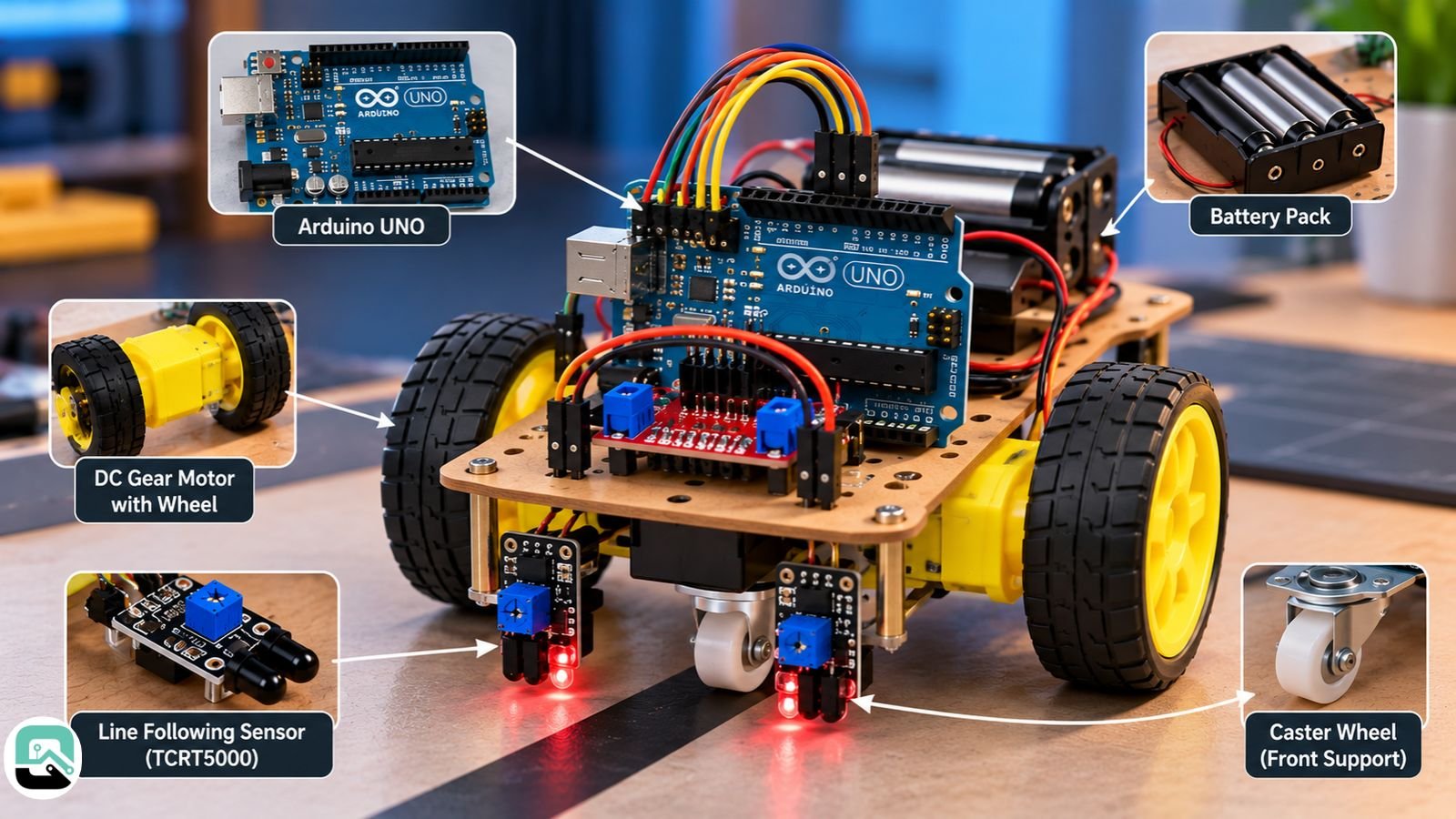
Fit the motors and wheels first, then the caster. The two sensors go last, at the front of the chassis, pointing down at the floor.
This build uses differential drive. Each wheel has its own motor, and the robot turns by running one wheel slower than the other. Cars use Ackermann steering instead, where the front wheels swivel. Differential drive is far easier to build and to program.
Before you add any electronics, push the bare chassis across the floor. It should roll straight. If it veers, re-seat the motors. Next, check that the caster swivels freely and keeps the chassis level. Finally, mount both sensors at the same height, parallel to the floor. Those three checks head off most of the drift and wobble problems people blame on their code.
How high should the line sensors sit?
Closer than you might think. Vishay, which makes the TCRT5000, rates the bare sensor’s peak operating distance at 2.5 mm, with a usable range of 0.2–15 mm. A module’s circuit board shifts that range a little, so use the figures as guidance rather than a rule.
Start a few millimetres above the floor, then raise the sensors in small steps while watching the readings during calibration. Settle on the height where black and white read cleanly every time.
How far apart should they be?
Slightly wider than your tape. Standard electrical tape is about 19 mm (¾ inch) wide. When the robot is centered, the tape should sit in the gap between the sensors, so both of them see the light floor.
While you’re working on the chassis, put a strip of masking tape on each motor and label it “L” or “R”. You’ll be glad of the labels when you wire the driver.
Wiring the motor driver and sensors
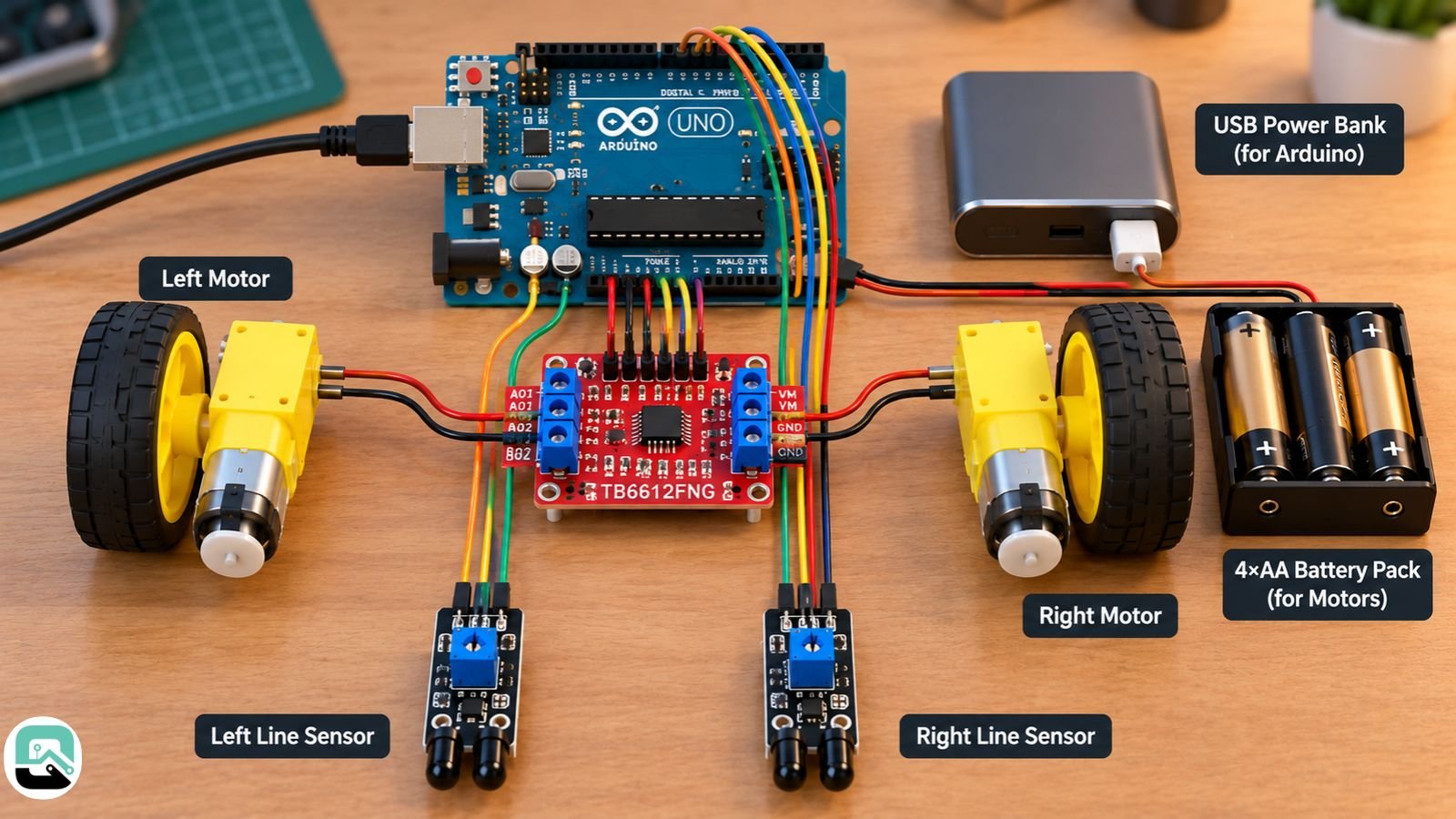
The driver is the middleman. The Arduino sends it tiny control signals, and the driver uses them to switch the much larger motor current from the AA pack. Never connect a motor directly to an Arduino pin.
Do all the wiring with the battery switch off. Breakout boards from different makers label their pins differently, so go by the labels printed on your own board.
TB6612FNG wiring table
| TB6612FNG pin | Connect to |
|---|---|
| VM | AA pack positive (through its switch) |
| VCC | Uno 5V |
| GND | AA pack negative and Uno GND |
| STBY | Uno D4 |
| PWMA / AIN1 / AIN2 | Uno D5 / D7 / D8 |
| PWMB / BIN1 / BIN2 | Uno D6 / D9 / D10 |
| A01, A02 | Left motor |
| B01, B02 | Right motor |
TCRT5000 sensor wiring table
| Sensor module | VCC | GND | D0 / DO |
|---|---|---|---|
| Left sensor | 5V | GND | D2 |
| Right sensor | 5V | GND | D3 |
“TCRT5000” is the name of the optical component, not of a standard board, and the modules built around it vary. For this build, buy one with a digital output pin and an onboard comparator. That comparator drives the output pin itself, so you don’t need to add pull-up resistors. Some modules also have a fourth pin marked A0; leave it unconnected, because this build doesn’t use the analog output.
Don’t skip the shared ground
The AA pack’s negative terminal, the driver’s GND, and the Uno’s GND must all be joined. Every logic signal is a voltage measured against ground. Without a shared ground, the driver has nothing to measure the Arduino’s signals against, and its inputs float.
Two batteries are fine. Two separate grounds are not.
The wiring above is specific to the TB6612FNG. If you substitute an L298N or another driver, follow that board’s own documentation for wiring and power.
Getting code onto the Arduino
You’ll use the free Arduino IDE.
- Download Arduino IDE 2 from the official Arduino software page and install it.
- Plug in the Uno with a USB data cable.
- Open Tools → Board and choose your board. For an Uno R4, first install the “Arduino UNO R4 Boards” package from the Boards Manager.
- Open Tools → Port and pick the port that appeared when you plugged in the board.
- Paste in a sketch and click Upload, the right-arrow button.
- Open the Serial Monitor and set it to 115200 baud.
If the upload fails, the usual suspects are the wrong board, the wrong port, or a USB cable that only carries power. Charge-only cables look identical to data cables, which catches a lot of people out.
Calibrating the sensors before you drive
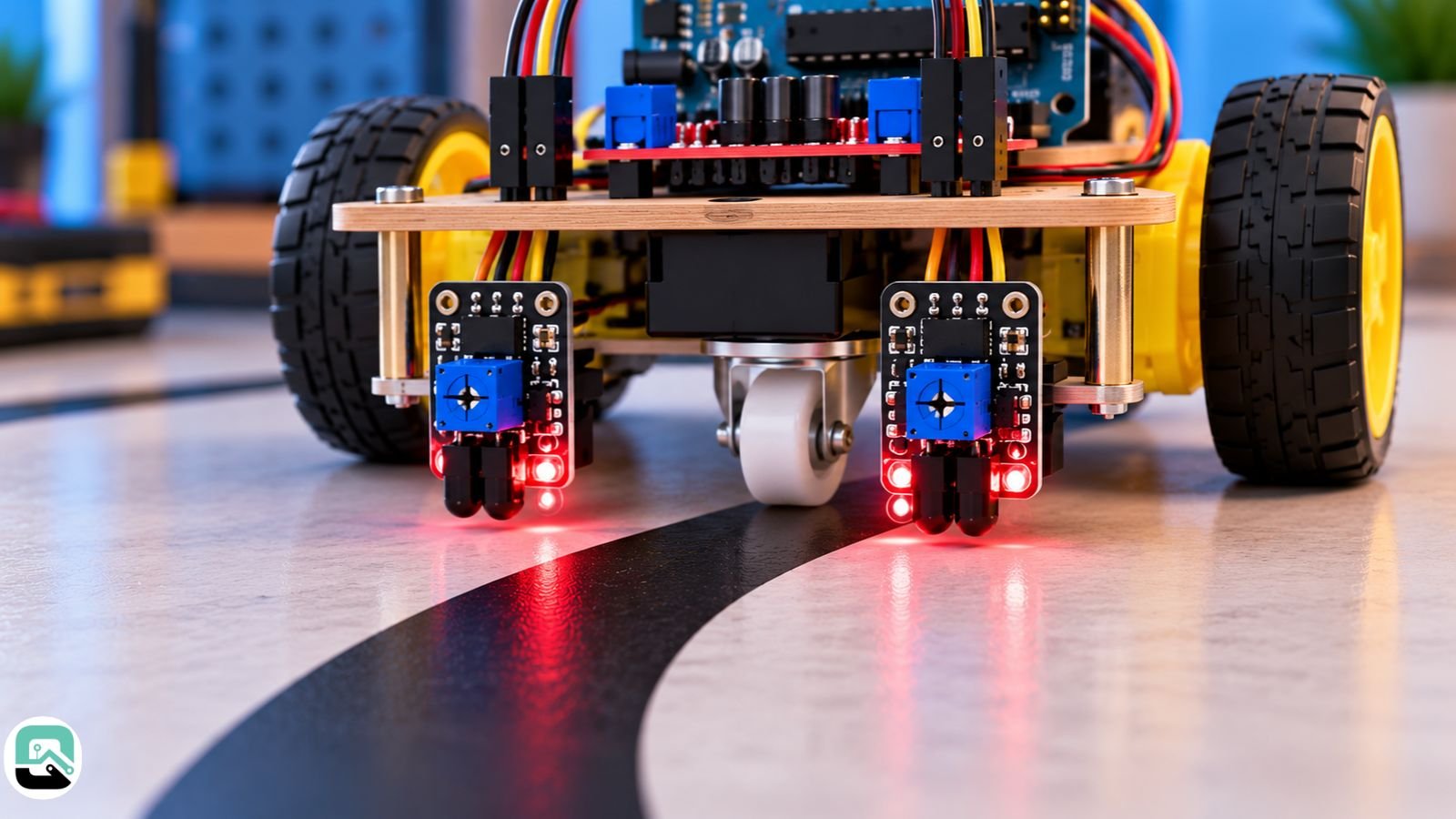
Here’s the step most beginners skip, and it’s the main reason robots steer away from the line. TCRT5000 modules don’t agree on which signal means “black”. Some read HIGH over tape, others read LOW. You have to find out which kind you have.
Upload this short check sketch:
// Sensor check: prints left and right readings
void setup() {
  Serial.begin(115200);
  pinMode(2, INPUT);
  pinMode(3, INPUT);
}

void loop() {
  Serial.print("L: ");
  Serial.print(digitalRead(2));
  Serial.print("  R: ");
  Serial.println(digitalRead(3));
  delay(200);
}
Hold each sensor over the tape, then over bare floor, and watch the numbers in the Serial Monitor. Turn the small potentiometer on each module until its indicator LED switches cleanly right at the tape’s edge. Then compare your readings with this table:
| Your module reads | Over black tape | Over light floor | Set in the steering sketch |
|---|---|---|---|
| Type A | 1 | 0 | BLACK_IS_HIGH = true |
| Type B | 0 | 1 | BLACK_IS_HIGH = false |
If a reading flickers between 0 and 1, the sensor is too high, or the potentiometer needs another nudge. Calibrate indoors, because sunlight carries enough infrared to swamp these sensors.
The line-following code
First, a limitation of this two-sensor version. It can’t tell the difference between “perfectly centered” and “completely lost”. In both cases, both sensors see white.
That means the robot only follows the line while the tape stays within reach of its sensors. If it overshoots a sharp bend, it simply carries on in a straight line. The three-sensor version further down fixes that.
Check motor direction with the wheels in the air
Prop the robot up so the wheels spin freely. Connect the USB cable, switch on the AA pack and upload the sketch below. Both wheels should turn forward, slowly. If one turns backward, switch the pack off and swap that motor’s two wires.
Next, slide a strip of tape under the left sensor. The left wheel should slow down. Repeat on the right side. Only once both sides react correctly should the robot go on the track.
// Two-sensor line follower: reference sketch, not yet tested on hardware
// Sensors straddle the line. Both on white = centered OR line lost.
const int AIN1 = 7, AIN2 = 8, PWMA = 5;   // left motor
const int BIN1 = 9, BIN2 = 10, PWMB = 6;  // right motor
const int STBY = 4;
const int SENSOR_L = 2, SENSOR_R = 3;

const bool BLACK_IS_HIGH = true;  // set false if your module reads LOW on black
const int BASE_SPEED = 90;        // 0-255; start low, raise in steps of 10
const int TURN_SPEED = 30;        // slower wheel during a correction

unsigned long lastPrint = 0;

void setMotor(int in1, int in2, int pwm, int speed) {
  if (speed >= 0) { digitalWrite(in1, HIGH); digitalWrite(in2, LOW); }
  else { digitalWrite(in1, LOW); digitalWrite(in2, HIGH); speed = -speed; }
  analogWrite(pwm, constrain(speed, 0, 255));
}

// If a wheel spins backward, swap that motor's wires or negate its value here.
void drive(int left, int right) {
  setMotor(AIN1, AIN2, PWMA, left);
  setMotor(BIN1, BIN2, PWMB, right);
}

bool onBlack(int pin) {
  return (digitalRead(pin) == HIGH) == BLACK_IS_HIGH;
}

void setup() {
  int outs[] = {AIN1, AIN2, PWMA, BIN1, BIN2, PWMB, STBY};
  for (int i = 0; i < 7; i++) pinMode(outs[i], OUTPUT);
  pinMode(SENSOR_L, INPUT);
  pinMode(SENSOR_R, INPUT);
  digitalWrite(STBY, HIGH);  // driver stays in standby until STBY is HIGH
  Serial.begin(115200);
}

void loop() {
  bool l = onBlack(SENSOR_L);
  bool r = onBlack(SENSOR_R);

  if (!l && !r)      drive(BASE_SPEED, BASE_SPEED);  // centered (or lost)
  else if (l && !r)  drive(TURN_SPEED, BASE_SPEED);  // line under left sensor: steer left
  else if (!l && r)  drive(BASE_SPEED, TURN_SPEED);  // line under right sensor: steer right
  else               drive(0, 0);                    // both black: junction or end mark

  // Print every 100 ms so debug output never slows the steering loop
  if (millis() - lastPrint >= 100) {
    lastPrint = millis();
    Serial.print(l);
    Serial.println(r);
  }
}
The STBY line matters more than it looks. The TB6612FNG holds STBY low internally, which keeps the motors off until the Arduino pulls the pin high. Forget that line, and the motors stay silent even though the wiring is perfect.
The debug print runs only every 100 ms for a similar reason. If you print on every pass of the loop, the serial buffer fills up. Each print then has to wait for space, and the robot ends up reacting to where the line was rather than where it is.
You’ll know it’s working when the robot completes a full lap of a gentle curve without leaving the tape. From there, raise BASE_SPEED 10 at a time until it starts overshooting the bends, then back off one step.
Adding a third sensor so it can find the line again
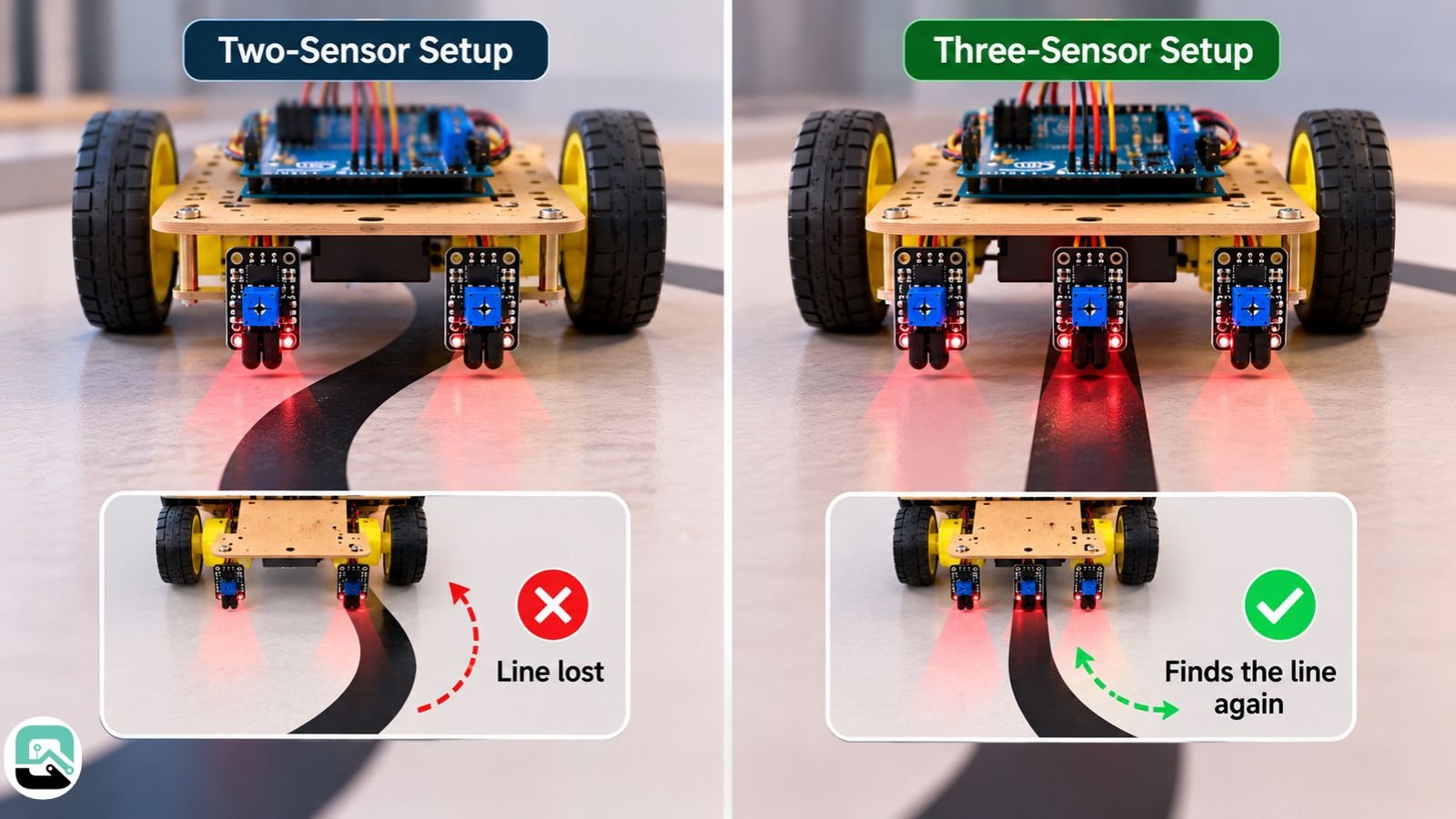
A center sensor solves the lost-line problem. Once one sensor rides directly on the tape, “all three see white” can only mean the robot has wandered off. The code can then turn back toward the side where it last saw the line.
Shift the sensors for this version. The middle sensor goes directly over the tape, and the outer two sit just past each edge. Wire the middle sensor’s D0 to Uno pin D12, with VCC and GND connected like the others.
// Three-sensor upgrade with lost-line recovery: reference sketch, not yet tested on hardware
const int AIN1 = 7, AIN2 = 8, PWMA = 5;   // left motor
const int BIN1 = 9, BIN2 = 10, PWMB = 6;  // right motor
const int STBY = 4;
const int SENSOR_L = 2, SENSOR_C = 12, SENSOR_R = 3;

const bool BLACK_IS_HIGH = true;
const int BASE_SPEED = 90;
const int TURN_SPEED = 30;
const int SEARCH_SPEED = 70;               // pivot speed while hunting for the line
const unsigned long SEARCH_TIMEOUT = 3000; // ms before giving up and stopping

int lastSide = 0;              // -1 = line last seen left, 1 = right, 0 = center
unsigned long lostSince = 0;
bool lost = false;

void setMotor(int in1, int in2, int pwm, int speed) {
  if (speed >= 0) { digitalWrite(in1, HIGH); digitalWrite(in2, LOW); }
  else { digitalWrite(in1, LOW); digitalWrite(in2, HIGH); speed = -speed; }
  analogWrite(pwm, constrain(speed, 0, 255));
}

void drive(int left, int right) {
  setMotor(AIN1, AIN2, PWMA, left);
  setMotor(BIN1, BIN2, PWMB, right);
}

bool onBlack(int pin) {
  return (digitalRead(pin) == HIGH) == BLACK_IS_HIGH;
}

void setup() {
  int outs[] = {AIN1, AIN2, PWMA, BIN1, BIN2, PWMB, STBY};
  for (int i = 0; i < 7; i++) pinMode(outs[i], OUTPUT);
  pinMode(SENSOR_L, INPUT);
  pinMode(SENSOR_C, INPUT);
  pinMode(SENSOR_R, INPUT);
  digitalWrite(STBY, HIGH);
}

void loop() {
  bool l = onBlack(SENSOR_L);
  bool c = onBlack(SENSOR_C);
  bool r = onBlack(SENSOR_R);

  if (l && c && r) {                 // all black: junction or end mark
    drive(0, 0);
    return;
  }

  if (!l && !c && !r) {              // line lost: pivot toward where it was last seen
    if (!lost) { lost = true; lostSince = millis(); }
    if (millis() - lostSince > SEARCH_TIMEOUT) { drive(0, 0); return; }
    if (lastSide < 0)      drive(-SEARCH_SPEED, SEARCH_SPEED);  // pivot left
    else if (lastSide > 0) drive(SEARCH_SPEED, -SEARCH_SPEED);  // pivot right
    else                   drive(0, 0);                          // no hint: stop
    return;
  }

  lost = false;
  if (l && !r)      { drive(TURN_SPEED, BASE_SPEED); lastSide = -1; }  // drifted right
  else if (r && !l) { drive(BASE_SPEED, TURN_SPEED); lastSide = 1; }   // drifted left
  else              { drive(BASE_SPEED, BASE_SPEED); lastSide = 0; }   // centered
}
If the robot can’t find the line within three seconds, it stops rather than wandering off across the room.
Troubleshooting a robot that won’t behave
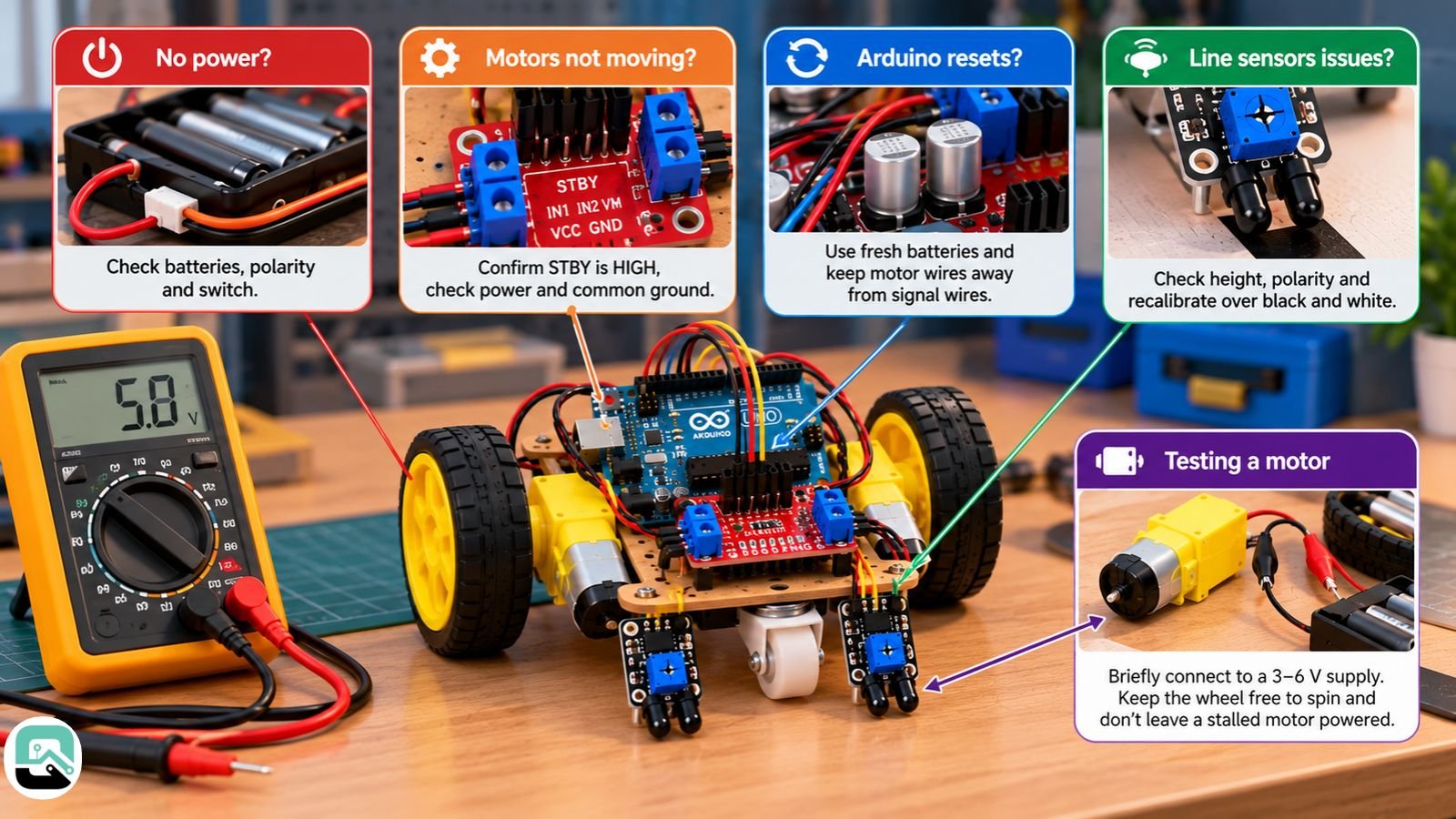
Nine times out of ten, the culprit is power, ground, or sensor polarity. Use the table as a list of places to look first, not a guaranteed diagnosis.
| Symptom | Likely causes | First check |
|---|---|---|
| Nothing powers on | Dead batteries, reversed polarity, switch off | Measure the pack voltage; check wire polarity |
| Motors don’t move | STBY low, no common ground, driver unpowered | Confirm STBY is HIGH; confirm the ground links; measure VM |
| Uno resets when the motors start | Supply voltage dip, electrical noise | Fit fresh cells; route motor wires away from signal wires |
| One wheel spins backward | Motor wires swapped | Swap that motor’s two wires |
| Robot turns away from the line | Wrong BLACK_IS_HIGH setting |
Re-run the sensor check over black and white |
| Robot oscillates side to side | Speed too high, sensors too far ahead | Lower BASE_SPEED; change one thing at a time |
| Robot drifts on a straight line | Misaligned wheels, dragging caster | Repeat the unpowered push test |
| Readings flicker or jump | Wrong height, sunlight, loose wire | Recalibrate indoors at track height |
Hobbyists on community forums often report the Arduino resetting when the motors kick in, caused by voltage spikes from sudden starts and stops. Small capacitors across the motor terminals or the supply lines often cure it. That’s practitioner advice, so test it on your own build.
Testing a motor on its own
The safest tool is a current-limited bench power supply set to the motor’s rated voltage.
Without one, you can briefly touch the motor’s leads to a battery pack within its rated voltage, such as a 3–6 V TT motor on four AA cells. Keep the wheel free to spin, hold the contact for a second at most, and never leave a stalled motor connected. A jammed motor draws its maximum current and heats up quickly.
Where to go after your first robot
Pick up one new skill per project:
- Obstacle avoider: distance sensing and simple decision logic.
- Three-sensor line follower: lost-line recovery, using the upgrade above.
- PID line follower: five or more sensors, with corrections that scale with how far the robot has drifted, which gives much smoother steering.
- Wireless control: the Uno R3 has no radio, but the Uno R4 WiFi adds Wi-Fi and Bluetooth through an onboard ESP32-S3 module.
- Camera and AI features: these need Linux-capable hardware, covered in the next section.
Could a beginner build a humanoid or AI robot?
Humanoids
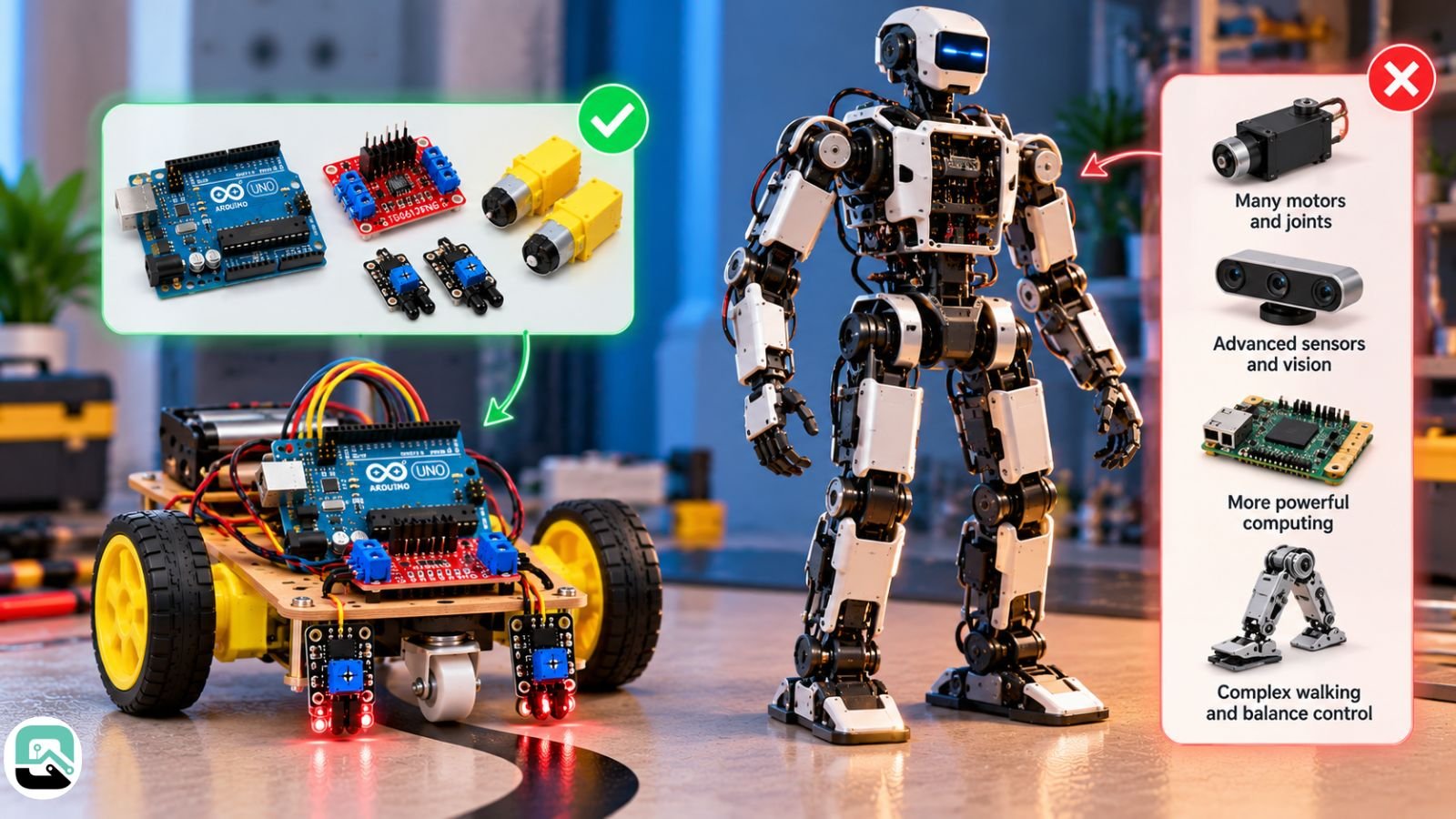
Not as a first project. Every joint needs its own motor and its own control code, and the joint count climbs fast. The explainer on degrees of freedom in humanoids shows how quickly the complexity piles up.
Then there’s walking. A two-legged machine is unstable by nature and has to correct its posture constantly; how bipedal robots balance covers why that problem dominates humanoid engineering.
Finish the wheeled robot first. Clean power distribution, tidy wiring, and patient debugging carry straight over to bigger machines, including the main types of humanoid robots on the market today.
AI and camera features
An Uno R3 has 2 KB of SRAM and 32 KB of flash memory. That’s plenty for a steering loop, and nowhere near enough for vision or language models.
Arduino’s own answer to that gap is the Arduino UNO Q. It keeps the familiar Uno shape but carries two processors. A Qualcomm Dragonwing QRB2210 runs Debian Linux, Python and AI models, and an STM32U585 microcontroller handles real-time motor and sensor work. Arduino App Lab lets you program both from one place.
Is building a robot legal?
This section isn’t legal advice, and the rules vary by country. Regulation of hobby robots mostly targets things that fly, transmit radio signals, or carry weapons, and this robot does none of those. If you’re unsure, check your local rules.
Competitions have rulebooks of their own, so read the event’s rules before you start designing.
Robot building FAQs
Q. What do you need to build a robot?
At minimum: a controller such as an Arduino Uno, a motor driver, two motors with wheels, a chassis, sensors, a battery pack for the motors, and some jumper wires. The parts table above lists the specs worth checking.
Q. How long does it take to build a robot?
For a first-timer building this line follower, roughly 2–4 hours to assemble and wire, plus 1–3 hours to calibrate and debug.
Q. Why can’t an Arduino power motors directly?
Its pins can’t supply enough current. An Uno R3 pin is rated at 20 mA, with an absolute maximum of 40 mA, and an Uno R4 pin at 8 mA. Even a small hobby motor needs far more, so a driver switches the motor current from a separate battery.
Q. Why do my line sensors read backwards?
TCRT5000 modules aren’t standardized. Some read HIGH over black tape, and some read LOW. Run the sensor check, then set BLACK_IS_HIGH to match your module.
Q. Can a 10-year-old build a robot?
Yes, with an adult nearby and simple parts. For a child’s first build, skip soldering and lithium (LiPo) batteries, and use an AA pack.
Q. Why won’t my robot move at all?
Check four things in order: charged batteries, STBY set HIGH, all grounds connected, and each motor spinning on its own. The troubleshooting table covers the rest.
Before you start building
A two-wheeled line follower is about as practical as first robots get. It teaches the full sense-decide-act loop with cheap parts that forgive mistakes.
Most of your trouble will be electrical, not code. Check the motors’ stall current, find out which way your sensors read, keep a shared ground, and start slow. Once the robot finishes a clean lap, wire in that third sensor.
Related: What Is Humanoid Robot Design? From Human Anatomy to Intelligent Machines
| Disclaimer: This guide is for educational and informational purposes only. Robot components, wiring configurations, and power requirements may vary depending on the hardware used. Always verify connections, voltage ratings, and manufacturer instructions before powering your robot. Incorrect wiring or battery handling can damage components or cause injury. Beginners should work under appropriate supervision when necessary. The author and publisher are not responsible for any damage, injury, or loss resulting from following this guide. |